
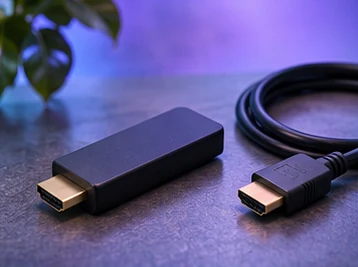
Fire TV is a family of devices. The same product name can cover multiple generations, so start with the unit you own. A screenshot of an app on another Fire TV does not establish that the same app is available on yours.
Identify the device before searching for an app
Open Settings and look for My Fire TV or Device & Software. In About, note the model name and software version. Amazon publishes a device-by-device update list, which is useful when two sticks look alike. If you can see an available system update, install it while the device is on power and let the restart finish.
Check your store region with the app provider. If the app cannot be found, confirm the exact spelling, developer and legitimate distribution route. Avoid installation codes or links forwarded by strangers. Ask VUAH for instructions for your model before using any subscription details.
Use the network check on the TV itself
Amazon documents its Network Status tool under Settings and Network. Where available, it can help distinguish a problem reaching the router from a problem reaching the internet. If you have just changed Wi-Fi, make sure the television is connected to the intended network. Try an app you already use and compare it with a second device in the same room.
If the device repeatedly restarts, first check the power connection and follow the manufacturer’s troubleshooting advice. A playback issue inside one app calls for a different check from a stick that loses power or drops off Wi-Fi.
Ask support with the right details
Send the model, software version, store region and exact error. Say whether other apps play and whether the device reboots or only the video stops. Keep sign-in details out of screenshots. Amazon Fire TV Network Status.
Open the Fire TV preparation guide