
The television’s brand and the name of its home screen can both be useful when looking for support. Check the device’s own About screen and write down the software version. The steps below help you collect the right details before following an app-specific guide.
Use the menu that matches your screen
On Google TV, open Settings, System, then About. Google’s troubleshooting guide places System update under About and Restart under System. On some Android TV versions the equivalent options are under Settings and About or Device Preferences. If the layout differs, check the manufacturer’s manual for that exact model.
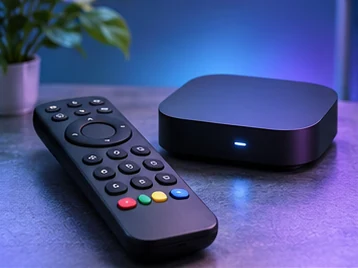
If an external box is connected by HDMI, check the box rather than the television’s built-in operating system. The picture may come from the box while the television’s network and app settings refer to a different device.
If you cannot find an app
Check that the device can access its normal app store and is using the expected profile. Ask the service which app and region apply before installing. A result for an Android phone does not confirm availability on Android TV. When you ask support, give the exact model, Android or Google TV version and region.
If you can open the app but video does not play, restart the device normally and try a known working app. Note whether the problem affects only one title or every item. Clearing app data can remove a sign-in or preferences, so use it only when you can restore access and support recommends it.
Write down the result
An error shown before sign-in, one shown after selecting a programme and a loss of the entire network point to different checks. Note the exact step, error and time so support can reproduce the problem. Google TV troubleshooting.
See the Android TV and Google TV guide